 Curator
2 October, 2026
Curator
2 October, 2026
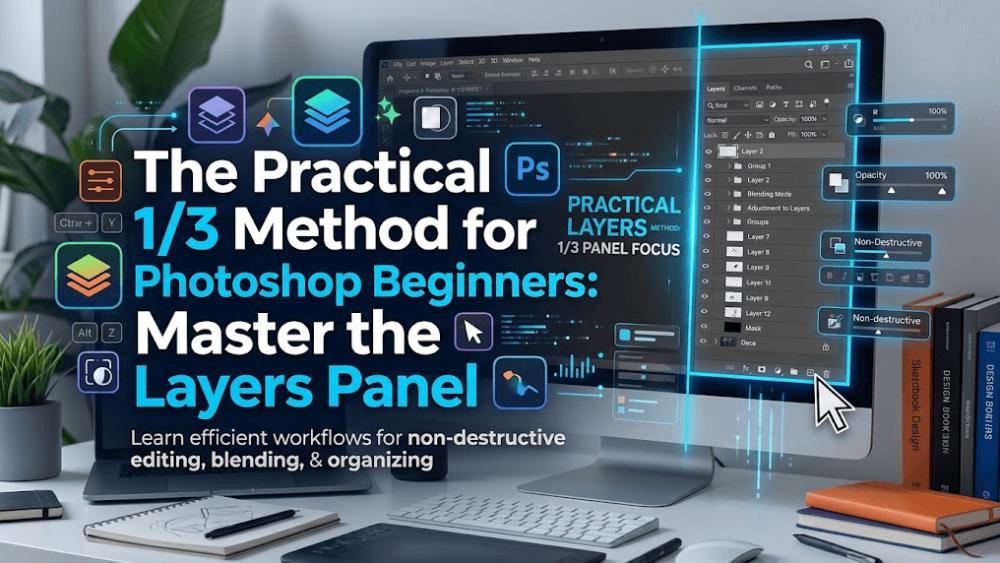
The Practical 1/3 Method for Photoshop Beginners: Master the Layers Panel
Staring at countless panels and icons can easily cause sensory overload. That is why adopting a practical 1/3 method for photoshop beginners is the smartest shortcut to getting started. By dedicating your initial focus to just the vital top third of the software—the Layers panel—you can instantly overcome photoshop tool anxiety and build a solid foundation for any editing project.
4 Essential Layer Operations: The Core Skills for Daily Retouching
Think of layers as transparent sheets of acetate stacked directly on top of each other. Once you master the following four operations, you can easily tackle everyday layouts and photo corrections:
Adjusting Layer Stacking Order
Core Rule: Any layer placed higher in the stack directly covers the content beneath it.
How to Do It: In the Layers panel, click and drag a layer up or down to change its position in the hierarchy.
Practical Use Case: If a decorative graphic covers your subject’s face, drag the subject layer above the graphic layer so the face becomes fully visible.
Duplicating Layers
How to Do It: Select the target layer, hold down Alt on Windows or Option on Mac, and drag the element on the canvas. Alternatively, press the shortcut Ctrl + J on Windows or Cmd + J on Mac to duplicate instantly.
Practical Use Case: Reuse consistent badges, typography styles, or layout assets across your canvas without building them from scratch.
Merging Layers
How to Do It: Hold down Shift to select multiple layers, then press Ctrl + E on Windows or Cmd + E on Mac to flatten them into a single layer.
Caution: Merging permanently fuses pixels together, stripping away your ability to tweak individual assets later. Reserve this step for final artwork to keep your PSD file lightweight.
Adjusting Opacity
How to Do It: Locate the Opacity slider at the top of the Layers panel and adjust the value anywhere from 0% to 100%.
Practical Use Case: Create subtle watermarks, soft background textures, or feathered drop shadows with smooth transparency—no complex color adjustments required.
The Golden Rule:
Isolated layers prevent layout conflicts; higher layers always conceal lower content. Always build a fresh layer before making changes to protect your original image for seamless revisions. Master the visibility eye icon and layer locks, and you will create clean, professional designs with zero prior experience.
Popular