 Curator
13 November, 2026
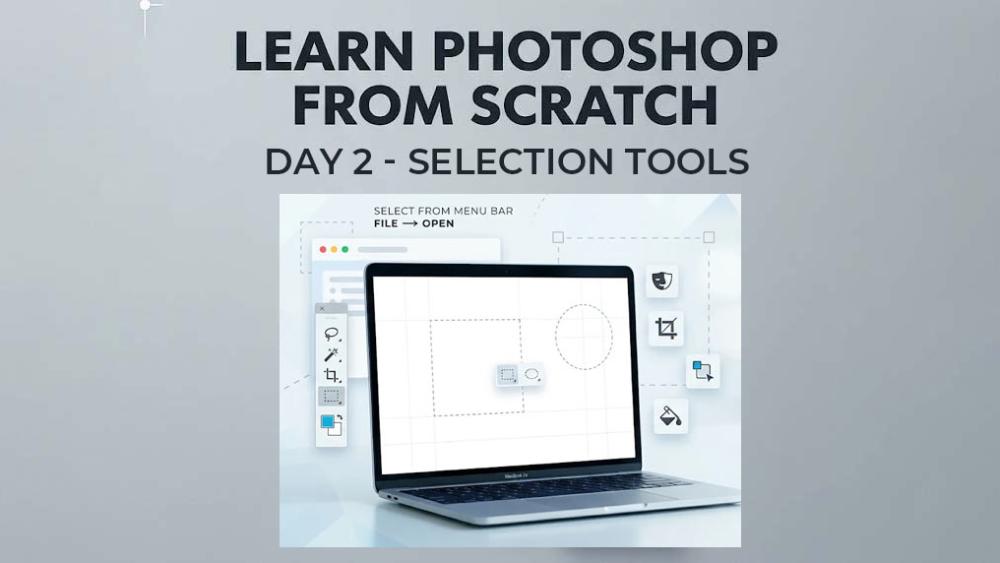
Learn Photoshop from Scratch: Day 2 - Selection Tools
Everything you do in Photoshop—whether creating shapes, filling colors, or retouching photos—relies on Selection Tools at its core. As a beginner, you do not need to memorize complex features; you only need to master two main categories of selections.
1.Geometric Selection Tools (Most Frequently Used)
1)Rectangular Marquee Tool: Create rectangles, square borders, and solid color blocks—essential for poster layouts and button backgrounds.
2)Elliptical Marquee Tool: Create ovals, circles, circular profile avatars, and round decorative elements. Key Shortcut: Hold Shift while dragging to lock proportions and draw a perfect square or circle without distortion. Best Used For: Clean icons, solid-color backgrounds, standard borders, and symmetrical shapes.
2.Freehand and Auto Selection Tools
1)Lasso Tool: Draw any freehand shape effortlessly, ideal for organic decorations and irregular color blocks.
2)Polygonal Lasso Tool: Cut out objects with straight edges (such as products or geometric graphics) with crisp, clean borders.
3)Quick Selection Tool / Magic Wand Tool: Select areas of similar color in a single click, perfect for fast background removal on solid backdrops.
3.Core Selection Modifications (Must-Know)
Shift = Add to Selection: Combine multiple shapes seamlessly without redrawing from scratch. Alt = Subtract from Selection: Remove unwanted areas to fix mistakes or trim excess parts.
Beginner Takeaway: Use the Rectangular and Elliptical Marquee Tools for clean geometric graphics, and reach for the Lasso or Magic Wand Tools for cutouts. Pair them with Shift and Alt to refine your selections so your fills never bleed and your shapes stay sharp—instantly elevating the quality of your foundational designs.
Popular