 Curator
16 November, 2026
Learn Photoshop from Scratch: Day 3 - Lasso Tools (L)
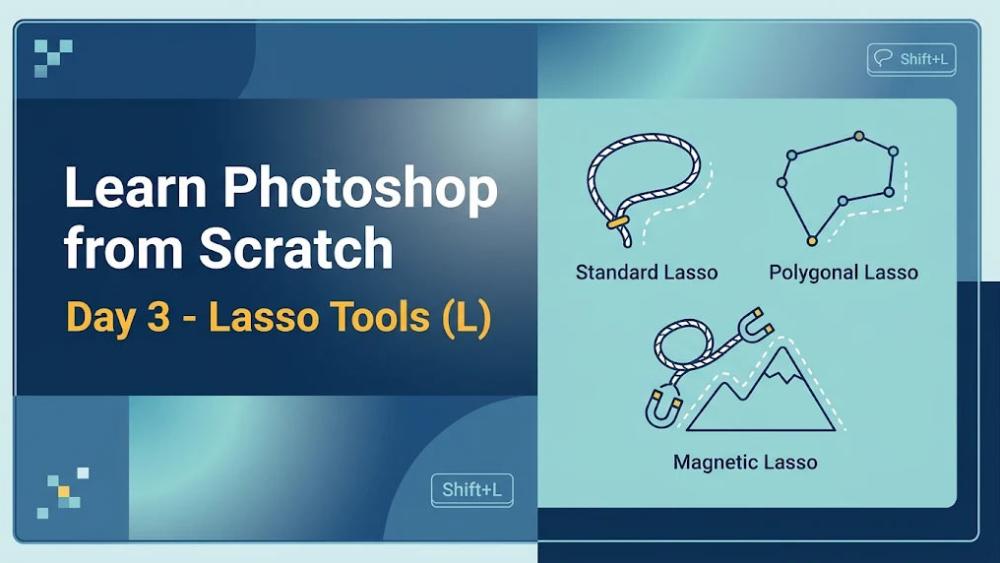
When basic rectangles and circles aren’t enough, the Lasso tool group lets you trace custom shapes and cut out irregular objects. All three tools share the L shortcut—press Shift + L to cycle through them quickly.
1. The Three Lasso Tools
Lasso Tool: Click and drag freehand to draw loose, irregular selections—ideal for quick, rough cutouts or organic shapes.
Polygonal Lasso Tool: Click point-by-point to create straight-edged selections—best for geometric objects, buildings, or products with sharp corners. (Tip: Double-click anywhere to close the selection automatically.)
Magnetic Lasso Tool: Move your cursor along an object's edge and Photoshop automatically snaps anchor points to high-contrast borders—great for separating subjects from clean, contrasting backgrounds.
2. Essential Survival Shortcuts (Must-Know)
Backspace / Delete: Undo the last placed anchor point if you misclick while using the Polygonal or Magnetic Lasso.
Esc: Cancel the entire active selection path and start fresh.
Shift / Alt: Just like Day 2, hold Shift to add to your selection or Alt to subtract areas.
Beginner Takeaway: Use the Polygonal Lasso for straight edges, the Magnetic Lasso when your subject clearly stands out from its background, and the standard Lasso for quick freehand rough cuts. Keep one finger near Backspace so a single misclick never forces you to start over.
Popular