 Curator
14 October, 2026
Practical Graphic Design: The Beginner's Roadmap
Most self-taught Photoshop beginners run into the same roadblock: you learn dozens of tools, yet your designs still feel flat and amateur. Levelling up is not about mastering complex filters; it is about building a Practical Graphic Design mindset.
Beginners often battle Photoshop Tool Anxiety, assuming standout graphics require heavy effects and crowded layouts. In Minimalist Social Media Graphic Design, the real key is contrast, not complexity. A clean canvas paired with a single, sharp focal point instantly elevates your visual quality.
Apply these four minimalist design moves to eliminate amateur layouts:
1.Restructure Typographic Hierarchy
Avoid using similar font sizes across your entire layout. Open the Character Panel to create clear contrast between headlines, subheads, and body copy. Pair Bold styles with Regular weights to guide the viewer through your core message effortlessly.
2.Add Subtle Frame Elements
Large empty spaces can easily feel unfinished. Grab the Rectangle Tool (U) or the Line Tool to draw minimal borders, or drop small, low-opacity accents along the margins to anchor the layout without stealing focus.
3.Simplify Text with Icon-Driven Simplification
Replace dense blocks of copy with clean vector symbols. Use the Custom Shape Tool or vector plugins to cut information overload, giving your layout modern polish and breathing room.
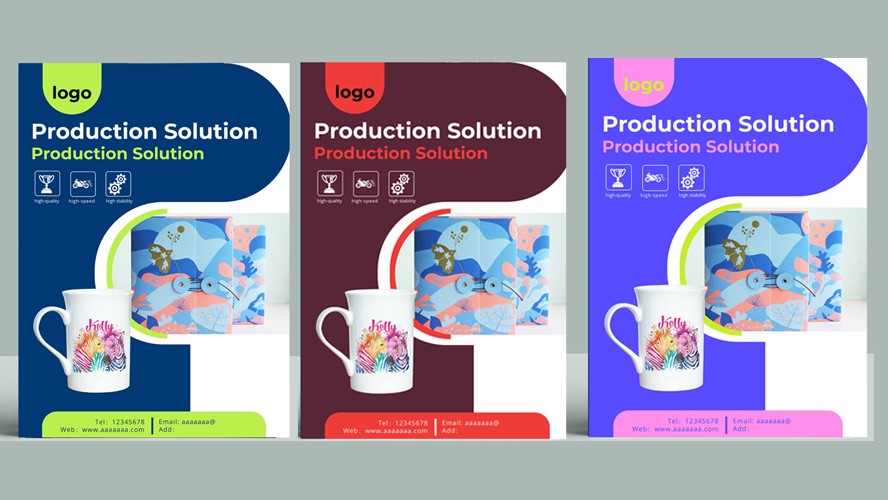
4.Lock Down a Cohesive Color Palette
Visual clutter usually comes from using too many competing colors. Head to the Swatches Panel and cap your palette at two to three core shades. Use the Eyedropper Tool (I) to pull consistent tones across the composition for a refined, cohesive finish.
Great design relies on clean fundamentals elevated by one standout focus. Build a structured layout, emphasize a single visual hook, and watch your graphics make a massive leap in quality.
Popular